How to search for a seller on the eBay app (2026)
.png)
Search for a seller on the eBay app by typing “seller:(exact username).” Don’t use their store name or display name, which is often different. The catch is that eBay doesn't officially document this operator, so it doesn't always return results.
I’ll explain different ways to help you learn how to search for a seller on the eBay app. Buyers will learn to find sellers who offer products they want, and sellers will learn how to research competitors.
How to search for a seller on the eBay app
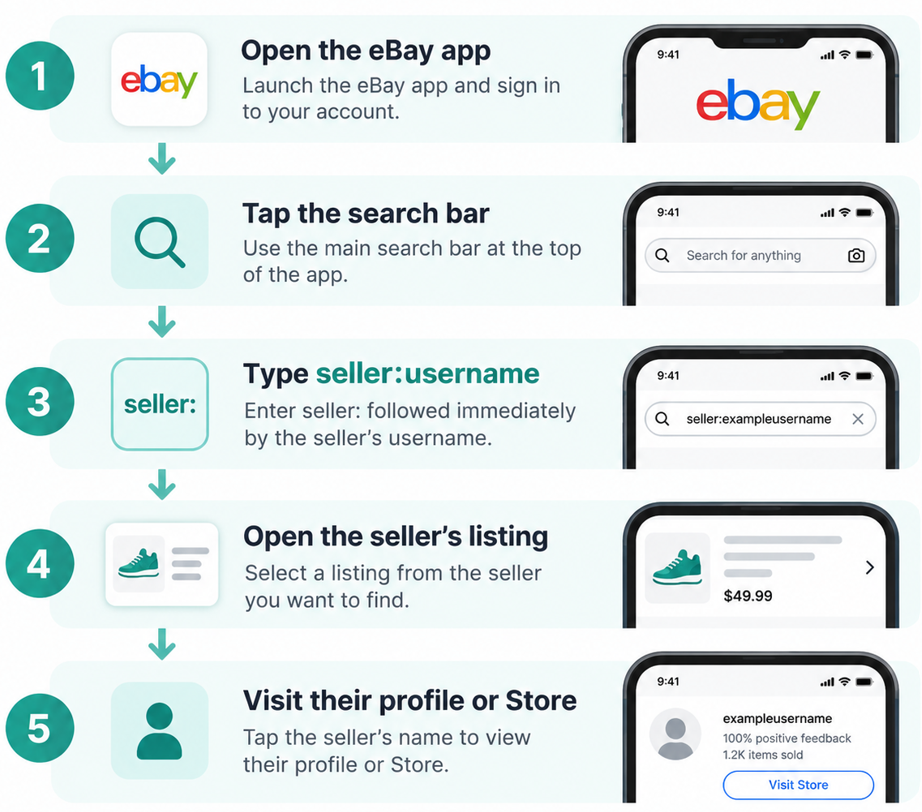
Search for a seller on the eBay app by opening the app on your device and searching for the seller’s username. Follow these 5 steps:
- Open the eBay app: Open the eBay app and sign in to your account. The app has a regular search bar that you can use to find products and listings. eBay’s website also has an Advanced Search tool with a “By seller” option. That option is not available in the same form inside the app.
- Tap the main search bar: Tap the search bar you normally use to find products. You can also use this field to search for a seller, but you’ll need the seller’s eBay username. A business name or Store name may be different from the username.
- Use search operators: Search operators use symbols like “:”. Type “seller:” followed immediately by the seller’s eBay username. For example, enter “seller:exampleusername” and tap the search button to locate the seller.
- Open one of the seller’s listings: Open a listing from the seller you want to find. Look for the seller information on the listing page.
- Visit the seller’s shop: From the listing, you can open the seller’s profile or Store when available. You can then browse their other listings and seller information.
Why you can’t find a seller, and what to do about it
You often can’t find a seller on the eBay app because you’re searching for the store (not the seller name), or you entered the incorrect username. Here are some reasons why you can't find that seller:
You're searching for the Store name
An eBay username, also called a user ID, is the public name linked to an account. But an eBay Store can have a different store name. If you’re using eBay’s Advanced Search, make sure you have the seller’s user ID before searching.
Only use eBay’s Store search if you know the Store name. You can also open the Store and look for the seller’s information there.
The username isn't correct
Check the seller’s username carefully. A small difference or error in the username can prevent you from finding the right account. eBay usernames can include letters, numbers, hyphens, periods, underscores, and asterisks. Sellers can also change their usernames.
Sometimes, sellers change their usernames, which may temporarily make them harder to find. Check an old listing, transaction, or message to find their current username.
The app search isn't returning the seller
The “seller:username” trick may help you find a seller in the eBay app. However, eBay doesn’t include this shortcut in its current official search instructions. Try eBay’s website through your mobile (request desktop site) or desktop browser when the app doesn’t show the seller. Open Advanced Search, select By seller, and enter the seller’s user ID.
If you switch to your desktop, you can also try eBay’s Advanced Search to find specific sellers or listings. Advanced Search is currently unavailable on mobile.
You know what the seller sells, but not their username
When you remember one of the seller's products but can’t find the seller, search for the item first. Open a matching listing and check the seller information on the page.
From there, you can view the seller's account and other listings. For example, search for a ceramic mug you remember and check the seller on the matching listing. Keep in mind that a popular item may return many listings, so finding the right seller could take some time.
How to find an eBay seller you've bought from before
You can quickly find an eBay seller you’ve bought from before by opening “previous purchases” on your eBay account and locating the purchase info. Follow these 4 steps:
- Go to your previous purchases: Open Purchase History through My eBay and find the transaction associated with the seller you want to locate. eBay keeps orders from the past 7 years in Purchase History.
- Locate the previous order: Look for the purchase using the approximate date and item details. Purchase History shows the last 60 days by default, and you can change the displayed year to find older purchases.
- Use the seller options on the order: Find the relevant purchase and select Contact seller from the available actions. You can then message the seller through the old transaction, even if you don't remember their username.
- Save the seller for next time: Once you reach one of the seller's current listings, select Save This Seller. The account will appear in Saved Sellers in My eBay, where you can return to the seller's available items later.
How to use eBay seller searches for competitor research
If you sell on eBay, another seller's public listings can help you research their products, prices, listing methods, and shipping choices. Remember that public listings may show only part of their business.
- Products and inventory: Review the products and categories across a competitor's active listings. Look for brands, models, variants, and product types that appear often. Active listings only show inventory that is currently public. The seller may have other products that you can’t see.
- Titles and product terminology: Compare the words competitors use in their listing titles. Look for brands, model names, sizes, product types, and other details that appear often. These details can show you how other sellers describe products similar to yours.
- Pricing, condition, and listing format: Compare prices for items with similar conditions and listing formats. A new product may have a different price than the same product in used condition. Also check whether the seller uses an auction or a fixed price. Auction pricing can change as buyers bid, while a fixed price shows the seller’s asking price.
- Photos, presentation, and shipping: Review how competitors photograph, describe, and ship products similar to yours. Check their photos for quality and descriptions for accuracy. Note whether they offer free shipping, 24-hour or less delivery details, and return terms. You might need to match them to be competitive for certain products.
Use Product Research to check actual sales data
eBay Product Research, a seller tool, provides historical sales data you can compare with competitors’ current listings. Use it to check actual sold prices, price ranges, sales activity, and other market data. Don’t treat a seller’s current asking prices as evidence of what buyers have paid.
Here’s what to check:
- Sold prices: Product Research can show both sold prices and the price when a seller accepted a Best Offer. Compare sales for items with the same model, condition, variant, and other product details. For example, a used lens listed for $220 might be comparable to similar models that recently sold for about $180.
- Price ranges: See the lowest and highest sold prices in your Product Research results. Check those listings to find possible reasons for the price difference. Condition, model, size, or other product details can affect the sold price. For instance, some bags might have sold for $40 to $75 because listings had different models or conditions.
- Sales volume: Check how many units sold during the period you're researching. Product Research lets you choose a date range from 1 day to 3 years. For searches covering 90 days or less, eBay also provides a sell-through rate. This compares sales activity with the number of available listings.
Sell more on eBay with Nifty
Anyone looking up how to search for a seller on the eBay app may want to browse their listings, compare prices, or study how they run their eBay business. A great tool that can help you speed up eBay workflows is Nifty. It lets you create listings with photos and crosslist the same item across multiple platforms.
Here's why Nifty's so helpful:
- Customized AI listing: Snap a pic and let Nifty's AI build a high-quality listing, with SEO-optimized titles and descriptions, and trending hashtags already filled out for you. You can even customize how AI writes your listings to follow your unique style.
- Crosslist now: With a couple of clicks, post your items across Whatnot, Poshmark, eBay, Mercari, Depop, and Etsy. No copy-paste clutter and no multi-tab hopscotch. (More marketplaces coming soon!)
- Bulk crosslisting: Publish up to 25 listings at once with marketplace-specific pricing rules, shipping presets, and AI-enhanced titles and descriptions. Start in Nifty or import from eBay, then export everywhere in one action.
- Marketplace-specific Pricing Rules: Set your price once on a primary marketplace, and Nifty auto-calculates the rest with percentage or dollar adjustments so your take-home stays consistent when you crosslist.
- Auto-delisting? Handled: When you make a sale, Nifty's sales detection auto-delists that item from every marketplace. Say goodbye to double-selling disasters and "sorry, it's already gone" apology messages.
- Bulk tools = no busywork: Share and relist daily in just a few clicks. You can even schedule drafts to go live while you sleep and set automatic discounts that run deeper over time.
- Analytics you can act on: Track sales, fees, top performers, and slow movers in one clean dashboard, so you can actually see what's working and what's just dead space. You can also set and track seller goals directly from your home screen.
Nifty pays for itself in just a few weeks. Plus, we’re expanding, so if you use Depop, Etsy, eBay, or Whatnot in the UK and Australia, you can use Nifty, too. Start with a 7-day free trial and turn the same seller page you were just tracking down into the one buyers find first.
FAQs
1. Can I search for an eBay seller by name?
No, you can’t search for an eBay seller by real name, but you can search for them by username. The exact username is the reliable identifier for lookups. If you only know the store name, search that store's listings directly, which saves time and avoids misidentifying sellers.
2. Can I use eBay Advanced Search on the app?
No, you can’t use eBay Advanced Search on the app. eBay's help pages describe Advanced Search as a desktop or laptop feature. You can still use standard sorting and filtering options when searching in the app. For the additional search criteria available through Advanced Search, switch to a desktop or laptop.
3. How do I save a seller on eBay?
Save a seller on eBay by opening one of the seller's listings and selecting “Save This Seller.” eBay adds the account to Saved Sellers in My eBay, where you can return to the seller and view their available items without searching for their username again.
4. Can I see everything an eBay seller has sold?
No, you can’t see everything an eBay seller has sold. eBay doesn't provide a complete public archive of everything an individual seller has sold indefinitely. You can view their current listings, while Product Research provides up to three years of eBay marketplace sales data for researching historical sold prices, sales activity, and market trends.


.png)